Video Call Fatigue Tips for Less Draining Meetings


Video call fatigue tips work best when you reduce unnecessary video time, hide self-view, and protect screen-free breaks before adding breathing or attention exercises. Zoom fatigue is the mental and physical exhaustion that can build up during prolonged video meetings. Close-up eye contact, watching your own face, extra effort to read social signals, and sitting still can all contribute. The problem is not limited to Zoom; similar demands occur on other video platforms.
Start with the calendar: shorten one meeting or move a routine update to email, chat, or a shared document. During calls, avoid multitasking and ask about camera flexibility. Between meetings, look away, stand up, and take a few natural breaths. These resets support recovery, but they do not replace manageable meeting schedules.
Definition: Zoom fatigue is the mental and physical exhaustion that can build up from prolonged video meetings because they increase close-up eye contact, self-monitoring, cognitive load, and sitting still.
What matters most
- Cut total video time before adding coping strategies: shorten meetings, skip unnecessary calls, and switch some updates to phone, email, or chat.
- Lower cognitive load by hiding self-view, using a simple background, avoiding multitasking, and making camera use flexible when possible.
- Add mindful micro-breaks: breathe for 60 seconds, look away from the screen, stand up, stretch, and end the day with screen-free wind-down time.
Four changes to make before your next video call
The first fix for Zoom fatigue is to reduce video exposure, not simply train yourself to tolerate more calls. Shorter meetings usually help more than another coping trick added to an already overloaded calendar.
Start with four actions: shorten one meeting, hide self-view, take a real break between calls, and stop multitasking during the call you keep. A 25-minute meeting with a clear agenda often feels different from a 60-minute call where everyone watches themselves think.
The chair creaks. Everyone keeps nodding.
Mindfulness is supportive here, not a substitute for meeting boundaries. A breathing pause can help you recover, but it cannot make six unnecessary calls reasonable. For practical workday resets, tools like Mindful.net offer secular, beginner-friendly mindfulness practices that fit between tasks rather than requiring a long session.
Check your calendar, camera rules, and room setup
Before using zoom fatigue tips, check what is actually within your control. The strongest routine starts with small schedule, setup, and boundary choices you can repeat this week.
- Review your calendar with a practical eye. Look for one meeting you can shorten, decline, combine, or move to email, chat, or a shared document. If you cannot remove it, ask whether the live portion can be clearer or shorter. If unfinished tasks keep crowding your calendar, a procrastination life audit can help you choose one small change.
- Check the camera norm before long calls. Some workplaces allow camera flexibility after introductions, during lectures, or while people take notes. If the norm is unclear, ask your manager or team instead of guessing.
- Adjust the physical setup first. Raise or lower the chair, move the screen a comfortable distance away, soften harsh backlight, reduce glare, and silence nonessential notifications before the call begins.
- Choose two experiments for the week. Pick one personal reset, such as a 60-second breathing pause, and one meeting boundary, such as camera-off focus time or a 25-minute default.
This keeps the advice concrete. You are not trying to become endlessly available; you are testing what makes video work less draining. When postponed commitments undermine your confidence, exploring procrastination and self-trust can help you practice keeping smaller promises.
Zoom Fatigue Mechanisms in the Brain and Body
Zoom fatigue works through nonverbal overload: video calls make the brain process more social signals, more self-monitoring, and less movement than ordinary conversation. Stanford researchers and a 2021 Technology, Mind, and Behavior paper identified several design features that systematically contribute to fatigue. See Jeremy Bailenson’s 2021 paper on nonverbal overload in video calls: Tmb0000030 For the 10,591-participant Zoom Exhaustion and Fatigue Scale study, see: J.Chbr.2021.100119
- Close-up eye gaze: Large faces on screen can create the feeling of sustained close-range eye contact, even when no one means to stare.
- Cognitive load: The brain works harder to interpret pauses, gestures, turn-taking, and facial expressions through a compressed screen.
- Self-view: Seeing your own face for long stretches can increase self-focused attention and mental effort.
- Reduced mobility: Sitting still in a narrow camera frame limits natural shifts, walking, and small posture changes.
- Uneven impact: In a Stanford study of 10,591 participants, women reported higher Zoom fatigue, partly linked to greater self-focused attention from constant self-view.
Video calls can feel more demanding than in-person conversations because the screen asks you to monitor yourself while also tracking everyone else.
A five-step routine for a day with video meetings
Use zoom fatigue tips as a workday routine, not a rescue plan at 4:30 p.m. The most practical sequence is to reduce the load, simplify the screen, then reset attention between meetings.
- Audit the day’s meetings and remove or shorten one. Convert a status update to chat, email, or a shared document when live discussion is not needed.
- Set camera expectations before long calls. Say, “I’ll be camera-on for the opening, then may switch off to focus.”
- Hide self-view and simplify the screen. Use speaker view, close extra tabs, and keep the background plain.
- Take a 60-second breathing or body reset between calls. Feel your feet on carpet or tile, then notice one full inhale and exhale.
- End the day with a screen-free transition. Close the laptop, write tomorrow’s top task, and step away before checking another feed.
For many office workers, a three-minute breathing pause before opening the laptop is easier to repeat than a long meditation plan.
Protect the gap between meetings from messages
A gap on the calendar is not necessarily a recovery break. Answering email or chat keeps attention on work and the screen. A Stanford-linked analysis of videoconference fatigue associated longer, more frequent meetings with greater exhaustion and more breaks with less fatigue. This supports protecting pauses, rather than treating every available minute as time to catch up.
As a practical starting point, schedule calls to finish five to ten minutes before the next commitment. Use that interval to look away from the screen, stand, or walk, not to open your inbox. These recovery actions appear in applied psychology guidance on videoconference fatigue. The interval is a scheduling option, not a proven ideal break length; adapt it to the time you can protect.
Match the change to your fatigue trigger
The right Zoom fatigue tip depends on the trigger. Match the problem to the smallest useful change before adding more effort.
| Fatigue trigger | Best tip | Why it helps |
|---|---|---|
| Too many meetings | Remove, shorten, or make one update asynchronous | Reduces total video exposure instead of asking you to endure more |
| Constant self-view | Hide your own video tile | Lowers self-monitoring and face-checking |
| Multitasking | Close email, chat, and extra tabs | Reduces attention switching and perceived strain |
| Eye strain | Look away, blink, and adjust glare | Gives the visual system a break from fixed near focus |
| No movement | Stand, stretch, or walk between calls | Restores normal body movement after camera-frame stillness |
Best for: people with some control over meeting habits, agendas, camera norms, or personal breaks. Not ideal for: workplaces where toxic over-scheduling is treated as normal. In that case, individual tips help at the edges, but the meeting culture still needs attention.
For meeting structure, mindful meeting practices can make the call itself less scattered.
Common Mistakes That Make Zoom Fatigue Worse
Treat Zoom fatigue as a meeting-design and workload problem, not a personal weakness. Breathing helps, but it works poorly when the calendar still asks your attention to stay on camera all day.
Use this quick correction list before adding another wellness habit:
- Reduce the video load before adding recovery tools. Shorten, remove, or move one meeting to an asynchronous update, then use breathing as support.
- Hide self-view instead of trying to ignore it. If your own face stays visible, part of your attention keeps checking expression, posture, and lighting.
- Change attention during breaks. Stand, look out a window, refill water, or feel your feet on the floor rather than scrolling another screen.
- Close extra tasks during the meeting. Email, chat, and tabs make the call feel more draining, even when the platform gets the blame. If extra tabs also help you avoid an important task, try practical ways to stop procrastination alongside reducing meeting distractions.
- Treat camera-off requests as attention management. For long or focus-heavy calls, switching video off can help someone listen better, not signal laziness.
Small corrections matter. The point is not perfect meeting behavior; it is fewer avoidable drains stacked on top of the call itself.
Brief attention and body resets between calls
Mindful Zoom fatigue tips are less about pushing through and more about catching strain before it becomes the whole background of the day. They help you return attention to one modest anchor, like the warmth of a coffee mug in your palms or the texture of a pencil, and they work best alongside fewer, shorter, and clearer video calls.
A useful between-call practice should be small enough to repeat on a messy Tuesday: one breath, one posture shift, one moment of noticing the room again.
- One-minute breathing: Count a few natural breaths without trying to make them impressive.
- Eyes-softening pause: Look past the screen, relax the forehead, and let blinking return.
- Posture check: Unclench the jaw behind closed lips, lower the shoulders, and let the spine move.
- Body scan: Notice tight calves against the floor or chair, then soften what can soften.
- Single-tasking reset: Choose one tab, one note, and one next action.
A 60-second breathing reset
Try this script: “Pause where you are. Let your attention land on one steady sensation, warm mug, heavy legs, or the smooth handle of a paintbrush. Breathe without forcing it. If the mind starts sorting diapers, pallet counts, or tonight’s errands, label that as planning and come back to the anchor.” If noticing a pending task brings discomfort, understanding procrastination and emotions can help you respond before turning to another distraction.
Mindful.net teaches beginner-friendly mindfulness practices and meditation techniques for everyday life. For a broader menu, mindfulness exercises for work can help you vary the reset.
Give your eyes a break from the screen
Does Zoom fatigue include eye strain? Yes, long video days can worsen digital eye strain symptoms, especially when you stare at a bright screen without enough blinking, movement, or distance changes.
The American Optometric Association estimates that computer vision syndrome, also called digital eye strain, affects 50% or more of computer users. Symptoms can include eyestrain, headaches, blurred vision, and dry eyes. Source: American Optometric Association, Computer Vision Syndrome: Computer Vision Syndrome
Use a simple eye recovery plan: look away from the screen regularly, blink on purpose, reduce glare, adjust lighting, and take screen-free breaks when calls end. A window in your side vision can help, but harsh backlight can make the screen feel worse.
Paused audio beside a water glass is still a break.
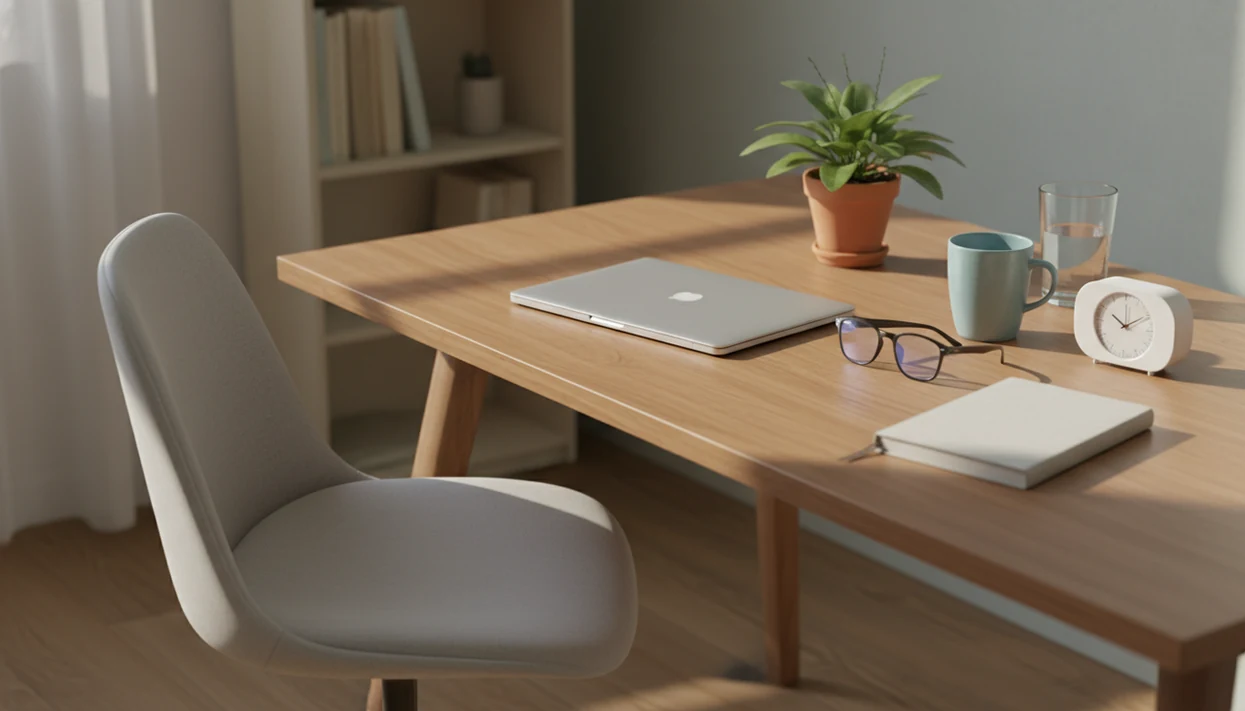
Image caption suggestion: A laptop, notebook, water glass, and person looking away from the screen during zoom fatigue tips for eye recovery.
For more on visual overload, read mindfulness for screen fatigue.
Keep video-call strain from extending into the evening
Late meetings and post-work scrolling can extend screen fatigue into the evening. The brain gets fewer cues that work has ended, and the eyes stay locked into the same near-screen pattern.
Sleep-hygiene guidance commonly recommends turning off screens at least 30 minutes before bed to reduce bedtime stimulation and protect sleep routines; see Sleep Foundation guidance on sleep hygiene: Sleep Foundation guide That does not mean screen changes cure insomnia or medical sleep disorders. It means your evening boundary may affect how tired tomorrow’s calls feel.
Try a shutdown ritual: close meeting tabs, write tomorrow’s top task, breathe for five slow cycles, and step away from the device. Keep it boring. Boring is useful here. If tomorrow’s top task keeps getting postponed, understanding procrastination causes can help you identify what makes starting difficult.
A soft lamp in a quiet corner beats one more “quick” scroll. If your workday keeps spilling into bedtime, mindfulness between tasks can make transitions more deliberate.
Video Call Limits
- Zoom fatigue tips cannot fully offset workplace cultures with too many unnecessary meetings, which may require management changes.
- Not everyone can turn off cameras, shorten meetings, change platforms, or decline calls.
- Seek clinical support for anxiety, depression, or burnout rather than relying on mindfulness and breathing practices alone.
- Evidence for exact break lengths and ideal meeting duration is still emerging.
Video call fatigue questions
What does Zoom fatigue feel like?
Zoom fatigue can include mental fog, eye strain, headache, irritability, low patience, and feeling drained before the next call. It can affect attention, emotions, the body, and willingness to interact. These symptoms are not specific to video meetings, so do not assume calls explain every episode of exhaustion.
Why are video calls so tiring?
Video meetings can combine close-up faces, constant self-view, restricted movement, and extra effort to interpret social signals. Meeting length, camera expectations, multitasking, and missing breaks can add strain. The number of calls alone does not explain fatigue; how the meetings are arranged and run also matters.
Does hiding self-view help with Zoom fatigue?
Hiding your own video tile removes a source of self-monitoring while allowing you to remain visible to others. It is a useful first change if you keep checking your expression, posture, or appearance. It does not reduce total meeting time or address strain from sitting still and watching other faces.
Should I turn my camera off during long meetings?
Camera-off participation may help when visual presence is unnecessary, but check team expectations first. Ask about switching off after introductions or during a presentation. A systematic review found protective associations with camera and microphone choice, although the evidence was low or very low strength, so benefits are not guaranteed.
How long should breaks between video calls be?
There is no established ideal break length. A practical starting point is to end meetings five to ten minutes before the next commitment and spend that time away from the screen. Look into the room, stand, or walk. Avoid filling the entire gap with email or instant messages.
How can I reduce fatigue when I cannot decline meetings?
Focus on changes you can make within the call: hide self-view, close unrelated tabs, avoid multitasking, and ask about camera flexibility. Protect any available screen-free gaps. If the schedule remains exhausting, raise meeting length and break expectations with your manager; personal coping practices cannot fully offset excessive meeting demands.
Can mindfulness help with video call fatigue?
A brief mindfulness pause can help you notice tension and return attention to one simple anchor, such as natural breathing or contact with the chair. Keep it short enough to use between calls. Mindfulness supports recovery, but it does not remove unnecessary meetings, constant notifications, or expectations of all-day availability.
Does Zoom fatigue happen on Teams or Google Meet too?
Yes. Zoom fatigue is shorthand for exhaustion associated with videoconferencing, not a problem exclusive to one brand. Teams, Google Meet, Webex, and similar platforms can involve the same demands: watching faces, monitoring your own image, limited movement, and sustained attention. Changing platforms alone may leave those demands unchanged.